
How to Create YouTube Thumbnails with AI: A Complete Guide for Content Creators
When I uploaded my first YouTube video back in 2019, I spent 30 seconds picking a random frame as my thumbnail. The result? Twelve views in the first week—and eight of those were probably my mom refreshing the page.
It took me embarrassingly long to realize that thumbnails weren’t just decoration. They’re billboards. They’re the difference between someone scrolling past your content or actually clicking to watch what you worked so hard to create.
Fast forward to today, and the thumbnail game has completely changed. AI-powered design tools have democratized what used to require expensive software and graphic design skills. Suddenly, creators without any design background can produce thumbnails that compete with channels running full production teams.
I’ve tested dozens of these tools over the past two years, made countless thumbnails for my own channels and clients, and learned what actually works versus what sounds good in marketing copy. This guide is everything I wish someone had told me when I started.
Why Your YouTube Thumbnail Matters More Than You Think
Before diving into the technical stuff, let’s talk about why this matters so much.
YouTube’s own Creator Academy has stated that 90% of the best-performing videos have custom thumbnails. That’s not a coincidence. When users scroll through their feed or search results, they’re making split-second decisions based almost entirely on two things: your title and your thumbnail.
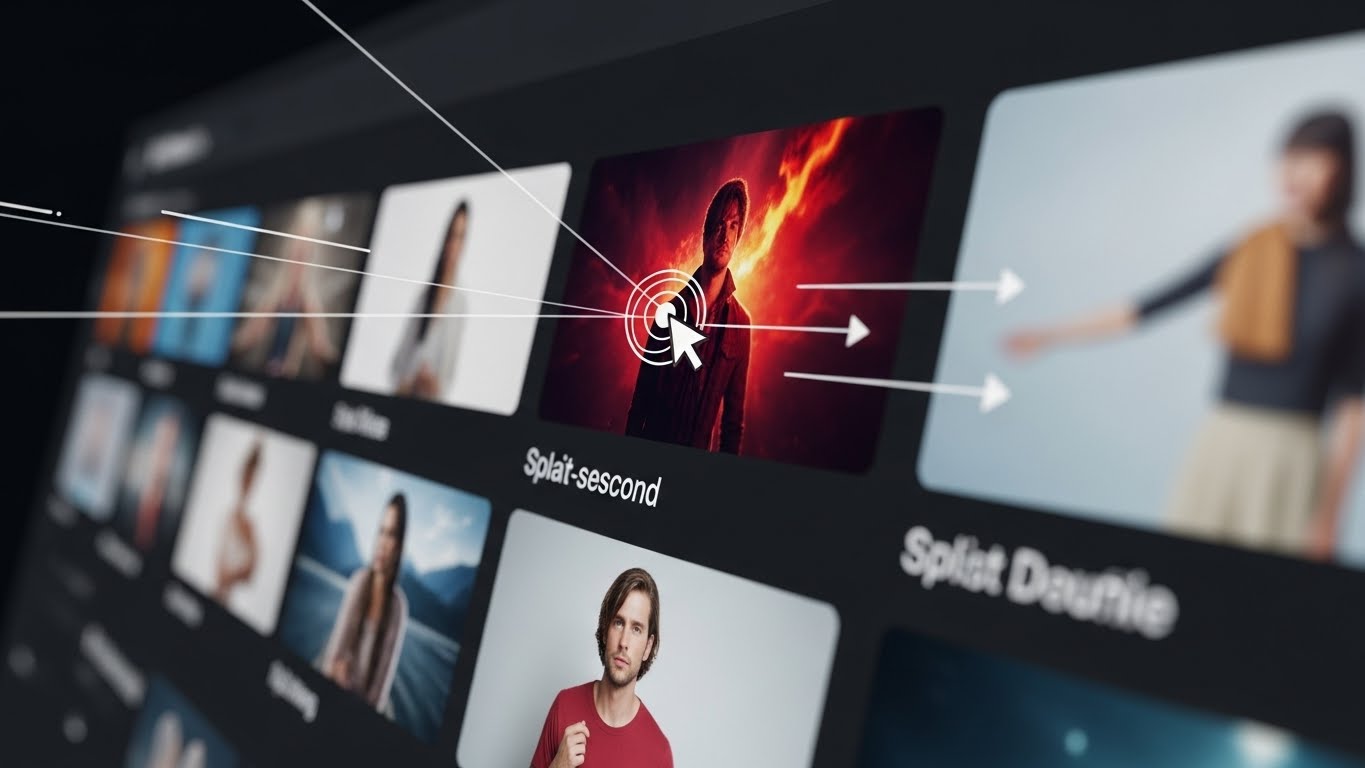
Think about your own browsing behavior. You probably don’t consciously analyze thumbnails—you click on what catches your eye. That gut reaction happens in roughly 50 milliseconds, according to research on visual processing. Your thumbnail needs to communicate value, intrigue, or emotion in less time than it takes to blink.
The impact of click-through rate (CTR) is staggering. I’ve seen channels double their CTR simply by redesigning their thumbnails with more intentional strategies. On a video getting 10,000 impressions, going from a 4% to an 8% CTR means an extra 400 views from duplicate content with the same title, just a better visual hook.
How to Create YouTube Thumbnails with AI
The first step in mastering AI thumbnail creation is understanding what these tools actually do and how they fit into your workflow.
AI thumbnail tools generally fall into three categories:
Template-based generators use artificial intelligence to suggest layouts, color combinations, and text placements based on your content type. You enter your video topic and a few keywords, and the system spits out design options you can customize.
Image generation tools create entirely new images from text descriptions. Want a dramatic sunset behind a mountain for your travel vlog? Type it in, and the AI generates it. This is where things get really interesting for creators who want unique visuals without the limitations of stock photos.
Enhancement and editing tools take existing images and improve them using AI. They’ll upscale low-resolution photos, remove backgrounds, adjust lighting, or even alter facial expressions to make them more engaging.
Most successful creators I know use a combination of all three, depending on their needs for specific videos.
Getting Started: What You Actually Need
You don’t need expensive equipment or software to get started. Here’s the realistic minimum:
- A decent smartphone camera or webcam for face shots
- Access to one or two AI tools (free tiers work fine initially)
- Basic understanding of what makes thumbnails click-worthy
- About 15-20 minutes per thumbnail once you’re familiar with the process
The learning curve is genuinely gentle. If you can use Instagram or edit a Facebook post, you can figure out these tools.
Best AI Tools for YouTube Thumbnail Creation
I’ve personally used all of these tools extensively. Here’s my honest assessment:
Canva Magic Studio
Canva has been the go-to design platform for non-designers for years, and their AI features have only strengthened that position. Their Magic Studio includes background removal, AI image generation, and smart resize features specifically useful for thumbnails.
What I like: The interface is intuitive, there’s a massive template library, and the free tier is genuinely usable. The AI background remover is shockingly good—it handles hair and complex edges better than tools I paid for five years ago.
What I don’t like: The AI-generated images can sometimes look generic, and really popular templates get overused, so your thumbnails might look similar to other creators’.
Adobe Firefly
Adobe’s AI image generator integrates directly with Photoshop and its Express platform. If you’re already in the Adobe ecosystem, this is a natural fit.
What I like: The image quality is excellent, and the integration with professional tools means you can start with AI and refine with precision editing. Their generative fill feature is fantastic for extending backgrounds or removing unwanted elements.
What I don’t like: The learning curve is steeper, and Adobe’s subscription pricing isn’t ideal for hobbyist creators. You really need the paid version to get full value.
Midjourney
For pure AI image generation, Midjourney produces some of the most visually striking results I’ve seen. The images have an almost cinematic quality that can make thumbnails really pop.
What I like: The aesthetic output is beautiful, and you can achieve looks that would otherwise require expensive photography or illustration. The community Aspect also means lots of inspiration from other users.
What I don’t like: It runs through Discord, which is unintuitive if you’re not already a Discord user. The text-to-image prompting also has a learning curve—your first results will probably be underwhelming until you learn how to write effective prompts.
Thumbnail AI (thumbnail.ai)
This is a specialized tool built specifically for YouTube thumbnails. It analyzes successful thumbnails in your niche and generates options designed to compete.
What I like: It’s laser-focused on YouTube, so the outputs are already sized correctly and designed with CTR in mind. The niche analysis feature is genuinely helpful in understanding what works in your specific content area.
What I don’t like: Less creative flexibility than general-purpose tools, and the AI-generated faces can still look uncanny in some cases.
Leonardo.ai
A newer player that’s gained popularity for its generous free tier and high-quality output. Suitable for creators wanting to generate custom imagery without significant investment.
What I like: The free tier gives you enough credits for real usage, not just a taste. The image quality rivals paid alternatives, and the control over artistic style is impressive.
What I don’t like: Server capacity can be limited during peak times, leading to slow generation or queues.
Comparison Table: AI Thumbnail Tools
ToolBest ForFree TierLearning CurveImage QualityYouTube-Specific Features
Canva Magic Studio Beginners, template-based design, Generous, Very Easy, Good Templates, sizing
Adobe Firefly Professional integration Limited Moderate Excellent Manual setup required
Midjourney Artistic, unique imagery None (trial only) Steep Exceptional None
Thumbnail AI YouTube-specific creation Limited Easy Good Built-in analysis, optimization
Leonardo.ai Budget-conscious creators Generous Moderate Very Good None
Fotor Quick edits and enhancements Moderate Easy Good Templates available
Pixlr Background removal, editing , Moderate , Easy , Good , Resize tools
How to Create YouTube Thumbnails with AI: Step-by-Step Process
Let me walk you through my actual workflow for creating a thumbnail from scratch. I’ll use a hypothetical cooking video as an example—let’s say it’s a video about making the perfect grilled cheese sandwich.
Step 1: Analyze Your Competition
Before opening any AI tool, I spend 5 minutes reviewing what’s already ranking for my target topic. Search “best grilled cheese recipe” on YouTube and study the top results.
What colors are dominating? What facial expressions are people using? Are there text overlays? If so, what do they say? Is there a pattern you can follow—or deliberately break?
For grilled cheese videos, I notice lots of close-up food shots, warm yellow/orange tones (playing off the cheese color), and text like “SECRET TIP” or “5 MINUTE.”
Step 2: Decide on Your Thumbnail Concept
Based on my analysis, I’ll choose a direction. Maybe I want to show:
- My surprised face with a beautiful grilled cheese
- An extreme close-up of the cheese pull
- A before/after split showing a sad sandwich versus mine
- A “mistake” concept (X mark over a standard error)
For this example, I’ll go with the cheese pull close-up with my face showing exaggerated excitement in the corner.
Step 3: Capture or Generate Your Base Images
For food content, I strongly recommend using real photos—AI-generated food can still look artificial, and viewers are sensitive to this.
I’ll shoot the grilled cheese mid-pull when the cheese is stretching beautifully. Natural lighting near a window works best. Take dozens of shots; you need options.
For my face shot, I’ll take a quick selfie with an exaggerated “wow” expression. Over-the-top expressions that feel ridiculous in person actually read well in thumbnails because they need to communicate emotion at tiny sizes.
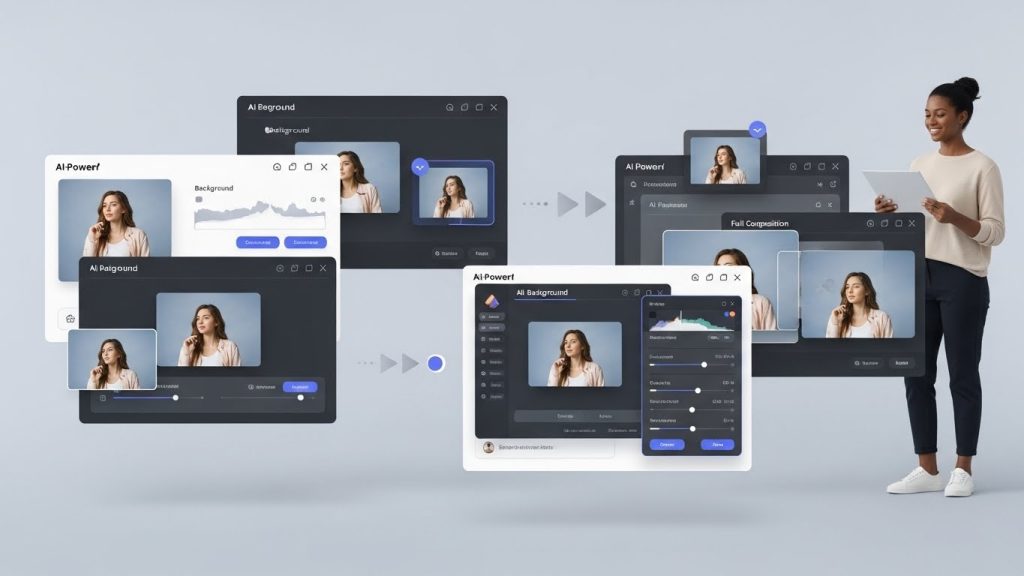
Step 4: Process Through AI Tools
Now I bring everything into my AI tools:
Background removal: Upload my face shot to Canva and use their background remover—one click, done in seconds.
Image enhancement: Run the grilled cheese photo through an AI upscaler and enhancer to make the colors pop and the details sharpen.
Composition: In Canva’s thumbnail template (1280 x 720 pixels), I place the cheese pull as my main image, position my face in the lower right corner, and add a subtle drop shadow so I don’t just float there.
Step 5: Add Text Elements
For text, I follow these principles:
- Maximum 4-5 words (I’m using “Best Cheese Pull EVER”)
- Large, bold font with high contrast
- Slight outline or shadow so it’s readable on any background
- Position opposite my face to balance the composition
The AI text-styling suggestions in tools like Canva can be helpful, but I usually have to adjust them because the automatic choices tend toward bland.
Step 6: Final Checks
Before exporting, I do three checks:
The squint test: Squint at your thumbnail or look at it from across the room. Can you still understand what it’s about? If not, simplify.
The mobile check: Preview at mobile size (how most people will see it). Text still readable? Face still recognizable?
The comparison check: Place your thumbnail next to competitors in a mock search result. Does it stand out or blend in?
Design Principles That Actually Work
After making hundreds of thumbnails, these are the principles I keep coming back to:
Faces Drive Clicks
Human faces with clear emotions consistently outperform thumbnails without faces. There’s evolutionary psychology behind this—we’re wired to pay attention to faces. When you use AI to generate thumbnail elements, consider how to incorporate authentic human expression.
That said, the face needs to show emotion. A neutral expression is almost worse than no face at all. Practice exaggerated expressions in the mirror—surprise, excitement, confusion, concern. It feels silly, but it works.
Contrast Is King
Your thumbnail appears alongside dozens of others. High contrast makes you visible. This means:
- Light elements against dark backgrounds (or vice versa)
- Complementary colors (blue/orange, purple/yellow)
- Sharp text against blurred or solid backgrounds
AI tools are generally good at suggesting high-contrast color schemes, so lean on those recommendations.
Simplicity Scales
At 100 pixels wide (typical mobile size), details disappear. One clear focal point beats a busy composition every time. If you can’t describe what’s happening in your thumbnail in one sentence, it’s too complex.
Consistency Builds Brand
While each thumbnail should be unique, having consistent elements—a color scheme, a font, a logo placement—helps viewers recognize your content in their feeds. This compounds over time as people begin associating that visual style with quality content they enjoyed before.
How to Create YouTube Thumbnails with AI: Advanced Techniques
Once you’ve mastered the basics, these advanced strategies can further elevate your thumbnails.
A/B Testing with AI Variations
One massive advantage of AI tools is speed. You can generate multiple thumbnail variations in minutes instead of hours. Some creators make 3-4 different thumbnails and rotate them using YouTube’s built-in testing feature (available to channels with enough traffic) or tools like TubeBuddy.
Create variations that change one element at a time:
- Same image, different text
- Exact text, different facial expression
- Same overall design, different color scheme
This gives you data on what resonates with your specific audience.
Creating Custom AI Imagery for Your Niche
If you’re in a niche where unique imagery matters—think storytelling channels, explainer content, or anything abstract—learning to write effective AI image prompts is invaluable.
The key is specificity. Instead of prompting “mountain landscape,” try “dramatic snow-capped mountain peak at golden hour, cinematic lighting, wide angle, mist in valleys, 8K quality.”
I keep a prompt document where I save effective prompts for future reference. When something works, I note what made it work.
Combining AI with Traditional Photography
The best results often come from hybrid approaches. Use AI for background enhancement or generation, but capture real photos of yourself and products. This blend gives you the control and authenticity of real photography with the creative possibilities of AI.
For example, I might photograph myself against a plain wall, remove the background with AI, generate a dramatic custom background with another AI tool, and composite everything together. The result looks like it required an expensive photoshoot when it actually required a ring light and thirty minutes.
Emotional Mapping
Different content types warrant different emotional appeals:
- Tutorial content: Curiosity, aspiration (show the result)
- Entertainment: Excitement, humor, shock
- News/commentary: Surprise, concern, intrigue
- Review content: Trust, authority, sometimes skepticism
I plan my emotional approach before creating the thumbnail, then choose AI-generated elements that align with that goal.
Common Mistakes to Avoid
I’ve made all of these mistakes, so hopefully you can skip them:
Over-Relying on AI Generation
AI-generated human faces and hands still struggle to be realistic in many cases. If something looks “off” to you, it will look off to viewers, too. When in doubt, use real photos of yourself or subjects.
Ignoring Mobile Viewers
More than 70% of YouTube watch time happens on mobile devices. If your text is too small to read on a phone screen, it may not exist. Test every thumbnail at mobile size.
Copying Too Closely
It’s fine to analyze successful thumbnails for inspiration, but direct copying gets noticed by audiences—and by the creators you’re copying. Use competitor research to understand principles, not to replicate specific designs.
Forgetting Brand Consistency
Every new trend is tempting, but chasing every style makes your channel look inconsistent. Establish your visual brand and evolve it gradually rather than reinventing it with every upload.
Clickbait Without Delivery
AI makes it easy to create sensational imagery. But if your thumbnail promises something your video doesn’t deliver, you’ll get clicks but terrible retention—and YouTube’s algorithm will punish you for it. Always ensure your thumbnail accurately represents your content.
How to Create YouTube Thumbnails with AI: Real Creator Examples
Let me share some anonymized examples from creators I’ve worked with:
Case Study 1: Tech Review Channel
This creator was averaging 2.3% CTR with basic screenshots and product images. We implemented:
- AI background removal to isolate products
- Generated dynamic gradient backgrounds
- Added the creator’s face with exaggerated expressions
- Implemented consistent color coding (green for positive reviews, red for negative)
Result: CTR increased to 5.1% over three months. Same content quality, same upload schedule—just better thumbnails.
Case Study 2: Cooking Channel
A home cooking creator struggled because her food photography wasn’t of professional quality. We used:
- AI enhancement tools to improve the color and sharpness of food shots
- Generated complementary backgrounds that made food colors pop
- Strategic text placement highlighting “secret ingredients” or time-saving aspects
Result: Her viral grilled cheese video (which inspired my example earlier) reached 2 million views, driven partly by a thumbnail that made viewers hungry at first glance.
Case Study 3: Commentary Channel
This creator discussed internet drama and trends. Original thumbnails were just photos of the subjects being discussed. We implemented:
- AI-generated dramatic backgrounds
- Split-screen compositions showing conflict
- Emoji-style reaction elements generated by AI
- Bold text teasing the controversy
Result: Average views per video increased 340% within six months.
Ethical Considerations and Best Practices
As someone deep in this space, I want to address some critical ethical points:
Authenticity Matters
There’s a line between enhancing your content and misrepresenting it. Using AI to make your grilled cheese look more appealing is fine. Using AI to show a grilled cheese you didn’t actually make is deceptive.
Respect for Others’ Likenesses
AI can now generate remarkably realistic human faces. Using these for thumbnails is fine, but be cautious about generating images that could be mistaken for real people, especially public figures. The legal and ethical landscape here is evolving rapidly.
Disclosure When Appropriate
While you don’t need to disclose every AI tool used in your design process (just like you don’t disclose every Photoshop filter), be honest if asked. The stigma around AI tools is fading as they become standard creative instruments.
Avoiding Harmful Content
AI image generators have content policies for good reasons. Don’t use them to create thumbnails featuring violence, hate symbols, or other harmful content—even if the tools would technically allow it.
Future Trends Worth Watching
The AI landscape moves fast. Here’s what I’m seeing emerge:
Real-time testing: Tools that automatically test thumbnail variations and optimize based on performance data, with minimal creator input.
Personalized thumbnails: YouTube has experimented with showing different thumbnails to different users. AI could enable creators to make multiple versions targeting different audience segments.
Video-to-thumbnail automation: AI that watches your video and suggests thumbnail frames or concepts based on the actual content.
3D and animated thumbnails: While YouTube doesn’t currently support animated thumbnails, the technology is ready when they decide to allow it.
Final Thoughts
Creating effective YouTube thumbnails with AI isn’t about replacing creativity—it’s about augmenting it. The best thumbnails still require human judgment about what will resonate with your specific audience. AI removes the technical barriers that once kept professional-quality design accessible only to those with years of training or big budgets.
Start simple. Pick one tool from my recommendations, make thumbnails for your following five videos, and pay attention to what performs best. The data will teach you more than any guide can.
Remember that thumbnails are just one piece of the YouTube puzzle. The best thumbnail in the world won’t save a video that doesn’t deliver value to viewers. But combine great content with excellent packaging, and you’ve got a recipe for sustainable channel growth.
Now close this article and make something. Your next video deserves a thumbnail that does it justice.