
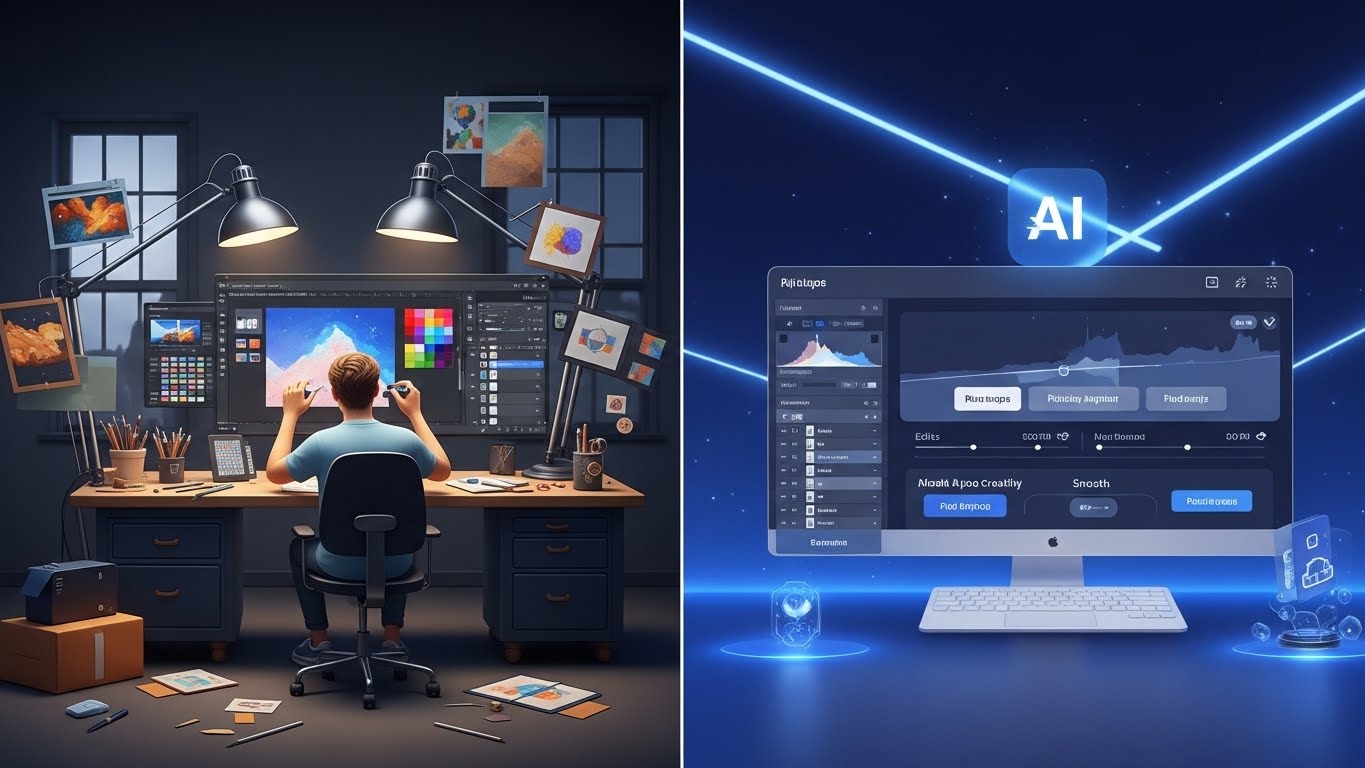
Three years ago, I spent forty-five minutes trying to remove a photobomber from the background of what should have been a perfect client headshot. Cloning, healing, and content-aware fill—nothing looked quite right. Last month, I handled the same issue in roughly twelve seconds. That’s not an exaggeration. The landscape of image editing has shifted so dramatically that workflows that once consumed entire afternoons now wrap up before my coffee gets cold.
After AI Tools to Edit Images Quickly To Remove Photobomber working as a commercial photographer and retoucher for over a decade, I’ve watched these AI-powered tools evolve from novelty features into indispensable parts of my daily routine. Some have genuinely transformed how I work. Others? Overhyped solutions that create more problems than they solve. Let me walk you through what’s actually worth your time and money.
The Real Shift Happening in Photo Editing
Before diving into specific tools, it helps to understand what’s actually changed. Traditional photo editing required manual selection of every element, pixel-by-pixel adjustments, and considerable technical skill. The learning curve for professional software like Photoshop stretched for years, not weeks.
Current AI tools don’t just automate existing processes—they fundamentally reimagine what’s possible. Background removal that once required meticulous path work now happens automatically. Object removal fills in realistic backgrounds that never existed in the original frame. Portrait retouching adapts intelligently to different skin tones and lighting conditions.
The democratization Aspect matters too. Small business owners, social media managers, real estate agents, and casual photographers now have access to capabilities that previously required hiring professionals or investing thousands of hours in mastering software.
But here’s what the marketing materials don’t tell you: these tools aren’t magic wands. They’re sophisticated, yes, but understanding their limitations matters as much as knowing their capabilities.
Adobe Photoshop’s Generative Fill: The Industry Standard Gets Smarter
Adobe’s integration of generative AI into Photoshop represents the most significant evolution in photo editing since layers became standard. The Generative Fill feature lets you select any area of an image and either remove it, extend it, or replace it with something entirely new.
I’ve been using this extensively for product photography. When a client sends images with cluttered backgrounds or wants objects removed from complex scenes, Generative Fill handles about 80% of cases remarkably well. The remaining 20% still requires manual refinement, but starting with a strong AI-generated base significantly reduces overall editing time.
The expansion feature deserves special mention. Need to convert a vertical shot to horizontal for a website banner? Select beyond your canvas edges, hit generate, and Photoshop creates contextually appropriate content that matches the original image. I recently extended a beach landscape photo to fit panoramic dimensions, and the generated sections included convincing wave patterns and sand textures, and they maintained the same golden-hour lighting.
What works exceptionally well:
- Object removal in moderately complex backgrounds
- Generating simple additions like furniture, plants, or props
- Extending natural landscapes and architectural scenes
- Quick background replacements
Where it struggles:
- Precise human anatomy generation (hands remain problematic)
- Maintaining brand-specific elements
- Consistent results with highly detailed patterns
- Generating text that looks correct
The subscription cost—about $10 per month with the Creative Cloud Photography plan—makes this accessible for professionals who need the complete Photoshop ecosystem anyway.
Luminar Neo: Purpose-Built for Photographers
Skylum’s Luminar Neo takes a different approach than Photoshop’s generalist toolkit. It’s built specifically for photographers who want powerful AI enhancements without learning complex software.
The Portrait Background Removal tool genuinely impresses me. Unlike generic background removers, it understands photographic elements—hair strands, soft focus edges, and challenging lighting conditions. I’ve processed dozens of environmental portraits where subjects had flyaway hair against busy outdoor backgrounds, and the results required minimal cleanup.
Their Sky Replacement feature goes beyond simple swapping. The AI adjusts the lighting of your foreground subject to match the new sky, adds realistic reflections in water when present, and handles atmospheric effects such as fog or haze. For real estate photographers or landscape shooters dealing with flat, overcast conditions, this saves entire shoots.
The GenErase tool handles unwanted objects with particular finesse in natural scenes. Removing hikers from scenic overlooks, power lines from rural landscapes, or vehicles from architectural shots works smoothly most of the time.
Pricing consideration: Luminar Neo uses a subscription model starting at $9 per month, though they frequently offer steep discounts on annual plans or perpetual licenses during sales. Given how specialized the tools are, photographers focused on portraits and landscapes often find the investment worthwhile.
Remove.bg: One Task, Done Exceptionally Well
Sometimes specialized tools outperform multi-feature platforms. Remove.bg does exactly one thing—removes image backgrounds—and does it remarkably well.
For e-commerce photographers, this tool saves substantial time. I’ve processed hundreds of product shots through it, and the edge detection handles transparent objects, reflective surfaces, and fine details better than most alternatives. The web interface works instantly without requiring software installation, which matters when you’re processing images on different machines.
The free tier offers preview-quality downloads suitable for social media, while paid credits unlock full-resolution downloads. For occasional use, paying per image makes financial sense. Heavy users should consider their subscription plans.
A practical tip: even when Remove.bg’s automatic detection misses something, their touch-up interface lets you quickly paint in corrections rather than starting over.
Canva: Democratizing Quick Edits
Canva evolved from a simple design tool into a surprisingly capable image editor. Their Magic Edit features let users select objects and replace them with text-prompted alternatives. Their background remover, while not quite as refined as Remove.bg for complex edges, handles straightforward subjects competently.
What makes Canva genuinely useful for quick edits is the integration with design workflows. You’re not just editing an image—you’re editing it within the context of social media posts, presentations, or marketing materials. The AI features complement rather than drive the experience.
Their Magic Eraser removes unwanted elements reasonably well for social media quality images. I wouldn’t use it for print-resolution commercial work, but for Instagram stories or LinkedIn posts, the results pass muster.
For non-professionals handling their own marketing—small business owners, solopreneurs, content creators—Canva’s free tier provides enough functionality to handle basic image editing. The Pro subscription unlocks more advanced features worth considering for frequent users.
Topaz Labs: When Quality Trumps Speed
Topaz offers several AI-powered applications, but Gigapixel AI and Photo AI deserve particular attention for specific use cases.
Gigapixel AI enlarges images while preserving—sometimes even enhancing—detail. Photographers working with older digital files, cropped images, or client-supplied low-resolution assets benefit significantly. I’ve upscaled product photos from 800-pixel web versions to print-ready 3000+ pixel files with results that genuinely surprised me.
Photo AI combines noise reduction, sharpening, and upscaling in a single workflow. For photographers shooting in challenging conditions—concerts, wildlife at a distance, events in dim venues—the noise reduction particularly impresses. It distinguishes between noise and fine detail better than previous tools, preserving texture in hair and fabric while cleaning up color noise in shadow areas.
The honest trade-off: Topaz tools require meaningful processing time. These aren’t instant solutions. A single high-resolution image might take 30-60 seconds to process, depending on your hardware. For batch processing, plan accordingly.
ClipDrop: Browser-Based Versatility
Stability AI’s ClipDrop suite offers multiple AI tools accessible through web browsers. The background removal competes with dedicated alternatives, while their “Cleanup” tool effectively removes unwanted objects.
What distinguishes ClipDrop is the “Uncrop” feature. It extends images beyond their original boundaries, similar to Photoshop’s Generative Expand, but accessible without software subscriptions. For quickly converting standard Aspect ratios to panoramic or social media dimensions, it delivers usable results.
Their relight tool adjusts image lighting after the fact, adding or removing light sources. The results vary—sometimes impressively realistic, sometimes obviously artificial—but for quick social media content, it opens creative possibilities.
Remini: Breathing Life into Old Photos
Photo restoration represents one of AI’s most genuinely helpful applications. Remini specifically targets enhancing and restoring degraded images—old family photos, damaged prints, and low-quality phone captures.
I’ve used it to restore scanned photos from the 1950s for a client’s anniversary project. The face enhancement feature added believable detail to faces that were barely more than blobs in the original scans. Hair texture, eye details, skin tones—the AI reconstruction isn’t perfect, but it’s often better than what manual restoration could achieve in comparable time.
The mobile app makes this accessible for casual users wanting to improve old family photos, while the web version handles higher-resolution files for more serious restoration work.
Runway: Beyond Traditional Editing
Runway positions itself as a creative AI tool for video and image content. For still-image editing, their “Magic Tools” include object removal, infinite image expansion, and style transfer.
What’s interesting about Runway is how it approaches creative enhancement rather than just correction. Their style transfer can apply artistic treatments that go beyond standard filters, creating genuinely unique visual effects.
For video creators working on thumbnails, promotional imagery, and creative concepts, Runway’s approach fits naturally into content workflows. For traditional photography enhancement, other tools typically deliver better results.
Practical Workflow Tips from Actual Usage
After incorporating AI tools into daily production work, I’ve developed some practices worth sharing:
Start with the best original possible. AI enhancement magnifies both strengths and weaknesses—a properly exposed, well-composed original yields far better AI-processed results than trying to salvage poor captures.
Use AI for heavy lifting, then refine manually. I rarely submit AI-processed images without at least a quick manual review. The tools handle maybe 85% of the work, but that final 15% of refinement distinguishes professional results.
Match the tool to the task. Generative Fill excels at removal and expansion. Luminar Neo handles portrait enhancement beautifully. Topaz delivers when enlargement quality matters. Using specialized tools for specific tasks beats trying to force one solution everywhere.
Save originals and maintain layer-based workflows. AI processing is essentially destructive—once you’ve overwritten your original with AI-generated content, there’s no going back. Maintain non-destructive workflows whenever possible.
Understand when AI fails. Human hands remain problematic for generative AI. Text generation produces gibberish. Specific brand elements or logos won’t reproduce correctly. Knowing these limitations prevents wasted time.
The Honest Limitations
Despite their impressive capabilities, these tools have boundaries worth acknowledging.
Consistency challenges: Generating multiple images that maintain visual consistency—such as product variations or series work—remains difficult. The AI doesn’t preserve memory between generations.
Detail accuracy: Fine architectural details, mechanical components, and technical elements are often generated incorrectly. You might get a generally convincing result that fails inspection by anyone familiar with the subject.
Style matching: While tools try to match existing image styles, generated content sometimes looks subtly different—slightly smoother, differently textured, or with color shifts that require correction.
Processing demands: Many AI features require substantial computing power. Users with older machines may experience slow processing or unreliable feature performance.
Ethical Considerations Worth Thinking About
As someone who’s worked in commercial photography during both the film and digital eras, I’ve seen authenticity debates evolve considerably. AI tools raise legitimate questions worth considering.
Disclosure matters. For journalistic or documentary work, the manipulation of images by AI raises serious ethical concerns. Standards vary by context, but transparency about significant alterations generally serves everyone’s interests.
Copyright complexity. The legal landscape around AI-generated content remains unsettled. Using AI tools for commercial work requires understanding how generated elements might affect licensing and usage rights.
Realistic expectations. Marketing materials for AI tools often showcase optimal results. Real-world usage produces more varied outcomes. Setting appropriate client expectations matters.
Skill development balance. Relying heavily on AI can stunt the development of fundamental editing skills. Understanding core concepts such as color theory, composition, and lighting manipulation remains valuable even when AI handles the technical execution.
Making the Right Choice for Your Needs
The “best” AI image editing tool depends entirely on what you’re trying to accomplish.
For professional photographers already invested in Adobe’s ecosystem, Photoshop’s generative features integrate naturally into existing workflows. The learning curve is minimal for experienced users.
For dedicated portrait photographers, Luminar Neo’s specialized tools often produce better results with less manual intervention than general-purpose alternatives.
For e-commerce and product photography, background-removal tools like Remove.bg, when paired with enhancement tools, efficiently handle the most common needs.
For casual users and social media creators, Canva’s integrated approach provides sufficient capabilities without requiring mastery of standalone applications.
For the restoration and enhancement of existing images, Remini and Topaz products effectively address specific quality improvement needs.
Looking Forward
These tools improve rapidly. Features that felt cutting-edge eighteen months ago now seem routine, while capabilities that seemed impossible are becoming standard. The pace of development shows no signs of slowing.
What I expect: continued improvement in anatomical accuracy (those AI hands will eventually look right), better consistency for series work, more seamless integration between platforms, and increasingly accessible pricing as competition intensifies.
What remains uncertain: how copyright frameworks will adapt, whether quality distinctions between free and premium tools will narrow or widen, and how the professional photography industry will evolve as editing barriers continue falling.
Wrapping Up
The photobomber problem I mentioned at the start? In 2024, solving that issue requires selecting the offending figure, hitting delete, and letting AI fill the background. The result isn’t always perfect on the first try, but generating alternatives takes seconds rather than hours of manual work.
These tools haven’t eliminated the value of skilled editing—they’ve shifted where that skill applies. Understanding composition, color, light, and visual storytelling matters as much as ever. The mechanical execution of those visions simply takes less time.
For anyone spending significant hours on image editing, exploring these AI capabilities is no longer optional. It’s the baseline expectation. The question isn’t whether to adopt AI-assisted editing—it’s which tools best serve your specific needs.
My suggestion: start with whatever integrates most naturally into your current workflow, learn its capabilities and limitations through actual use, then expand your toolkit based on real needs rather than feature lists. The tools that matter are the ones you’ll actually use regularly, not the ones with the longest specification sheets.
The fundamentals haven’t changed. Good images start with good capture. Post-processing enhances rather than salvages. But the time between clicking the shutter and delivering final work has compressed dramatically. And honestly, I’m not nostalgic for those forty-five-minute clone-stamp sessions.