

I still remember the distinct, whirring sound of my computer fan struggling to render a simple five-second 3D rotation in 2026. Back then, motion design was a discipline of patience. It was a trade defined by keyframes, graph editors, Bézier curves, and the crushing realization that you had to manually adjust the position of a character’s finger for every single frame to avoid it looking broken. It was craftsmanship, yes, but it was also tedious labor.
Today, the landscape has shifted so violently that it is almost unrecognizable. AI software to make animated graphics has transformed from a quirky, experimental novelty into the backbone of modern digital content creation. We are no longer just manually pushing pixels; we are directing neural networks. We are moving from the era of “doing” to the era of “guiding.”
Having spent the last eighteen months completely retooling my creative agency’s pipeline around these technologies, I can tell you firsthand: the hype is real, but so is the learning curve. This isn’t about pushing a “magic button” and getting a Pixar movie. It is about understanding a new, chaotic, and incredibly powerful set of instruments that can save you weeks of work—or waste days if you don’t know how to wield them.
In this extensive guide, we are going to strip away the marketing buzzwords. We are going to look at the nuts and bolts of AI software to make animated graphics, categorize the tools that actually work for professionals, examine real-world workflows, and candidly discuss the limitations that software companies try to hide.
The Paradigm Shift: From Additive to Generative
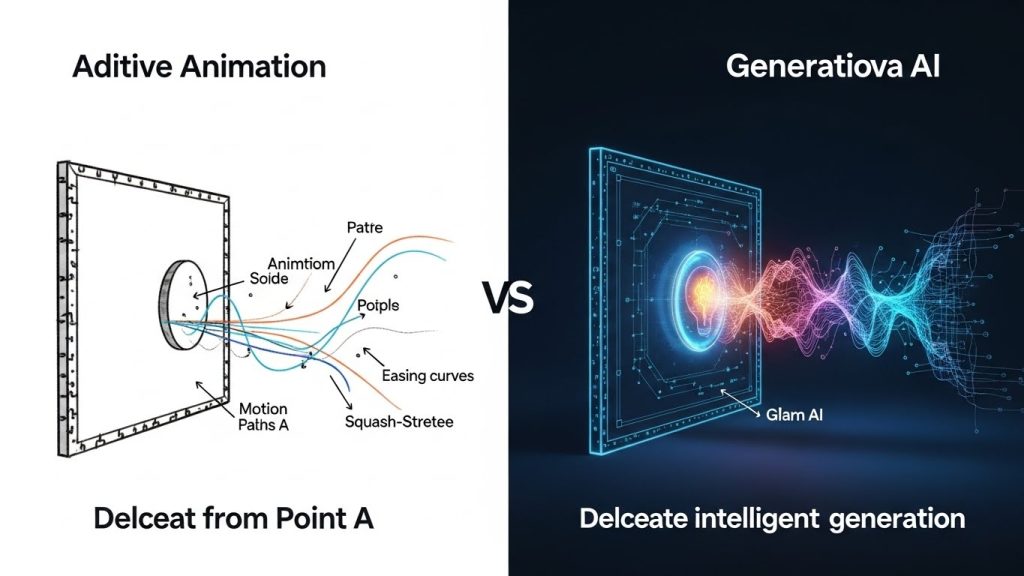
To understand the software, you have to understand the fundamental shift in philosophy. Traditional animation is additive. You start with a blank canvas. You draw a circle. You tell the computer to move the circle from point A to point B over 20 frames. You add “easing” to make it smooth. You add a squash-and-stretch effect to give it weight. Every element exists because you explicitly put it there.

AI animation is largely generative or interpolative.
- Generative: You provide a text prompt or a reference image, and the AI hallucinates the pixels based on training data from millions of videos. It predicts what the next frame should look like.
- Interpolative: You give the AI a start frame and an end frame, and it dreams up the movement in between, understanding the image’s context (e.g., that water flows downwards or that a cloud drifts).
This shift means the skill set for a motion designer is changing. It is less about manual dexterity and more about curation, compositing, and prompt engineering.
Category 1: Text-to-Video and Generative World Building
The most visible and hyped sector of AI software to make animated graphics is the text-to-video market. These are the tools creating those surreal, cinematic clips flooding your social feeds.
Runway (Gen-2 and Gen-3 Alpha)
Runway is, without a doubt, the current heavyweight champion for creative professionals. While tools like Sora (OpenAI) have shown flashy demos, Runway is the tool we are actually using in production environments right now.
My Experience: I use Runway primarily for texture work and atmospheric backgrounds. If a client wants a video background of “abstract liquid gold swirling with black oil, cinematic lighting,” creating that in a 3D program like Cinema 4D or Blender involves complex fluid simulations, lighting setups, and render times that can take overnight.
With Runway Gen-3, I can prompt that description. Within 90 seconds, I have four variations.
The “Motion Brush” Feature:
This is the killer feature that separates Runway from the toys. Instead of just hoping the AI animates the right part of the image, the Motion Brush allows you to “paint” over specific areas (like clouds or water) and tell the AI to move only those pixels horizontally or vertically. This level of granular control is essential when you are trying to tell a specific story rather than just generate random cool visuals.
Luma Dream Machine
Luma emerged aggressively, with a focus on speed and “physics” that feel slightly more grounded than those of its competitors.
The “Keyframes” Workflow:
Luma’s strength lies in its ability to accept a first frame and a last frame. This is massive for storytellers. I can generate a character standing at a door in Midjourney (Frame A) and generate the same character walking through the door (Frame B). I feed both into Luma, and it generates the 5-second walk between them. It doesn’t always get the walk cycle perfect—sometimes the legs “glitch”—but as a base for an animatic or a quick social post, it’s revolutionary.
Pika Labs
Pika has carved out a niche in stylization. While Runway aims for photorealism, Pika seems to excel at animation styles (anime, 3D render styles, claymation).
Lip Sync and Region Modification:
Pika recently introduced a feature that lets you upload a video, select a character’s face, and type “add sunglasses” or “make them wink.” The AI tracks the face and integrates the new element. For marketing edits that require changing a detail without reshooting, this is a lifesaver.
Category 2: The “Boring” But Profitable Stuff (UI and Marketing)
While generative video gets the glory, the real money for freelancers often lies in automated motion graphics for apps, websites, and slide decks. This is where AI is saving hundreds of hours on repetitive tasks.
Jitter Video
If Figma and After Effects had a baby that went to an Ivy League school, it would be Jitter. It is web-based and focuses on interface animation.
The AI Integration:
Jitter isn’t generating the UI designs for you. Instead, it creates the movement. You can select a group of layers—say, a chat notification popup—and use the AI command bar to type “Slide in from bottom with a soft bounce and fade in.”
Why It Matters:
In After Effects, creating a custom “bounce” expression requires coding (JavaScript) or fiddling with the graph editor. Jitter understands the intent. I recently completed a project for a Fintech app where we had to animate 50 different screen transitions. Using Jitter’s AI templates, a project that was scoped for two weeks took three days.
Rive
Rive is technically a tool for interactive graphics (graphics that react to your mouse cursor), but they are heavily integrating Machine Learning to predict animation curves.
The Future of Rive:
They are working on tech that allows for “state machine” predictions. Imagine a character in a game that doesn’t just cycle through a pre-made “run” animation, but actually adjusts its legs procedurally based on the terrain it is running over. This is the bleeding edge of AI software to make animated graphics.
Category 3: Character Animation and Rigging
Character animation is the hardest discipline to master. It requires an understanding of anatomy, weight, and timing. AI is democratizing this by replacing the “rigging” process (adding virtual bones to a model).
Wonder Dynamics (Wonder Studio)
This software is frankly terrifying in how good it is. It automates the VFX pipeline.
How It Works:
You film a single-camera video of yourself (or an actor). No motion capture suit. No green screen. You upload that footage to Wonder Studio. You then drag and drop a CG character (like a robot or an alien) onto the actor.
The AI does three things simultaneously:
- Motion Capture: It analyzes the actor’s body mechanics and transfers them to the 3D model.
- Clean Plating: It removes the real human actor from the video, painting in the background behind them.
- Compositing: It lights the 3D character to match the original video’s environment.
Real World Use Case:
I used this for a pitch video for a sci-fi short. We filmed in my backyard. Within an hour, I had a shot of a mech-warrior walking through the grass. The shadows were perfect. The footfalls interacted with the ground. To do this manually would have required a team of three people (a rigger, an animator, and a compositor) working for a week.
Adobe Character Animator (with AI Features)
Adobe has been quietly adding AI to this tool for years. The “Body Tracker” feature lets you stand in front of your webcam, and a cartoon puppet on-screen mimics your movements in real time.
Lip Syncing:
The unsung hero here is the AI-driven lip-sync. You upload an audio file of dialogue, and the AI analyzes the phonemes (sounds) and maps them to the correct mouth shapes (visemes) on the character. It’s not perfect—it struggles with mumbling—but for explainer videos or YouTube content, it eliminates the most tedious part of 2D animation.
Category 4: Bringing Static Photos to Life
This is a specific niche of AI software for creating animated graphics, incredibly popular with documentary makers and advertisers who are stuck with static assets.
LeiaPix and Immersity AI
These tools specialize in “Depth Maps.” When you look at a photograph, your brain knows the person is in the foreground, and the mountain is in the background. A computer just sees a flat grid of pixels.
The Technology:
These AI tools analyze images to estimate the “Z-depth” (distance) of each pixel. They create a greyscale map where white is close and black is far. Once this map exists, the software can slightly shift the “close” pixels faster than the “far” pixels, creating a 3D parallax effect.
Case Study:
I worked on a legacy video for a museum using archival photos from the 1920s. We needed them to feel dynamic. Using Immersity AI, we added a subtle camera “orbit” to these 100-year-old photos. Suddenly, the subjects felt like they were separating from the background. It added an emotional resonance that a simple “Ken Burns” zoom never could.
The Workflow: Integrating AI into Professional Production
Listing the tools is easy. Understanding how to string them together into a coherent workflow is where the expertise comes in. You cannot just prompt “make me a commercial” and expect a result.
Here is a breakdown of a modern, AI-assisted motion graphic pipeline I used for a recent freelance project (a 30-second teaser for a podcast):
Step 1: Ideation and Style Frames (Midjourney)
I didn’t start with animation. I started with style. I used Midjourney to generate the characters’ and the environment’s looks. We iterated on the “lighting” and “color palette” here because it’s instant.
- Time saved: 2 days of concept art.
Step 2: Asset Separation (Photoshop Generative Fill)
Once the client approved the still image, I had to separate the layers. I needed the character on one layer and the background on another. I used Photoshop’s Object Selection tool to cut out the character, then used Generative Fill to fill the hole left in the background.
- Time saved: 4 hours of cloning/stamping.
Step 3: Animation Generation (Runway & After Effects)
I took the background layer into Runway to make the clouds move and the neon lights flicker (using Motion Brush). I imported the character layer into After Effects and used the Puppet Pin tool (now AI-assisted for better mesh deformation) to make the head nod.
Step 4: Upscaling (Topaz Video AI)
This is the secret sauce. AI software to make animated graphics usually outputs at 720p or 1080p with low bitrates. The footage often looks “muddy.”
I ran the Runway clips through Topaz Video AI. This software doesn’t just stretch the video; it reconstructs details. It sharpens edges, removes compression artifacts (blocking), and upscales it to a crisp 4K.
Step 5: Frame Interpolation (Flowframes or Topaz)
The AI video was rendered at 24 frames per second, but the client wanted a smooth 60 fps for Instagram. Instead of repeating frames, I used AI interpolation to generate new frames in between the existing ones, making the motion buttery smooth.
Step 6: Human Compositing
I brought everything into Premiere Pro. I added film grain (to hide the “digital plastic” look of AI), added text overlays, and synced the sound. This human touch binds the disparate AI elements into a cohesive video.
The Elephant in the Room: Limitations and Hallucinations
We must be honest about the flaws. If you rely solely on AI software to make animated graphics, your work will look like a fever dream.
1. Physics and Weight
AI has no concept of gravity. Objects often float. Characters walking down the stairs might slide as if on a ramp. When objects collide, they often merge into each other like liquid terminator metal. This is why AI is currently better suited to “surreal” or “magical” subjects than to strict realism.
2. Temporal Consistency (The Flicker)
This is the biggest enemy. As a video plays, the AI might decide that a character’s shirt changes from blue to plaid for three frames, or that their glasses disappear. This “shimmering” effect is the hallmark of raw AI video.
- The Fix: You have to be a master of masking. If the face is morphing but the body looks good, mask out the face and replace it with a static image or a separate, more stable generation.
3. Text Handling
While tools like DALLE-3 are getting better at spelling, video generators are terrible at it. If you ask Runway to generate a neon sign that says “OPEN,” it will likely spell “OPEEN” or “0P3N.”
- The Fix: Never rely on AI for typography. Create your text animation in After Effects or Jitter, then overlay it.
Ethical Considerations and Copyright
This is the section that makes corporate legal teams sweat.
The “Soulless” Argument
There is a valid criticism that AI art steals from human creators to train its models. As a professional, I navigate this by using AI as an accelerator, not a replacement. I don’t use the names of living artists in my prompts (e.g., “in the style of [Artist Name]”). I develop my own style prompts.
Copyright Ownership
Currently, the US Copyright Office has signaled that purely AI-generated works cannot be copyrighted. However, works that show significant human modification can be.
This means if you just type a prompt and download a video, you might not own it. But if you take that video, rotoscope it, color grade it, add sound design, and composite it with other elements, you are creating a new work with human authorship. This “Human-in-the-Loop” approach is not just better for quality; it is essential for legal protection.
The Cost of Entry: Is It Worth It?
One of the most attractive aspects of this revolution is the price drop. Professional 3D software (Cinema 4D, Maya) costs thousands of dollars a year. Render farms cost even more.
Most AI software to make animated graphics operates on a SaaS (Software as a Service) model.
- Runway: Roughly $15-$95/month depending on credits.
- Midjourney: $10-$30/month.
- Topaz Video AI: A one-time purchase of around $300 (or upgrade pricing).
- Luma/Pika: Freemium models with paid tiers around $20/month.
For a freelancer, spending $100/month to have the capabilities of a small VFX studio is a no-brainer. The ROI (Return on Investment) is massive. A project that used to take me 40 hours now takes 15. That allows me to either take on more clients or—more importantly—spend more time on the creative direction rather than the technical execution.
Future Trends: Where Are We Going?
If the last year is any indication, the next year will be exponential. Here is what I am watching closely:
1. Real-Time Generation
Currently, we wait minutes for a video to generate. Companies like NVIDIA are working on chips that will do this in milliseconds. Imagine playing a video game where the graphics aren’t pre-rendered, but generated live by AI based on your voice commands.
2. 3D Asset Generation (Gaussian Splatting)
We are moving beyond video to actual 3D geometry. Techniques like Gaussian Splatting allow AI to take a few photos of a room and create a fully navigable 3D space. For Virtual Reality (VR) and Augmented Reality (AR) designers, this is the holy grail.
3. “Director Mode” Controls
We will see fewer text prompts and more controls. Knobs for “camera shake,” sliders for “lighting temperature,” and schematic views where you can place actors on a map and tell the AI to generate the shot from that angle. The interface will look less like a chatbot and more like a flight cockpit.
Conclusion: Adapt or Die (But Don’t Panic)
There is a pervasive fear among my colleagues that AI-generated animated graphics will make motion designers obsolete. I strongly disagree.
AI is making execution a commodity. It is making the act of moving pixels cheap. But it is making taste, storytelling, and direction more valuable than ever. When everyone can generate a 4K explosion in seconds, the explosion itself is no longer impressive. What matters is why the explosion happened, how it fits into the narrative, and how it makes the viewer feel.
The designers who will thrive are not the ones who can use the Graph Editor the fastest. They are the ones who can act as Creative Directors, orchestrating these powerful AI tools to bring a unique vision to life.
If you are just starting out, don’t be intimidated by the “robot apocalypse.” Download Jitter. Play with Runway. Break things. Make weird, glitchy art. The barriers to entry have crumbled. You no longer need a $5,000 workstation to make magic. You just need an idea and the patience to guide the machine.
Summary Checklist for Creators
- Start Small: Don’t try to make a movie. Make a GIF.
- Mix Media: Combine real video, 3D, and AI. The best results are hybrids.
- Invest in Upscaling: It distinguishes amateurs from pros.
- Curate relentlessly: For every good 3 seconds of AI video, I throw away 30 seconds of garbage. That is part of the job.
The revolution of movement is here. It’s messy, it’s exciting, and it’s open for business. Now, go make something move.