
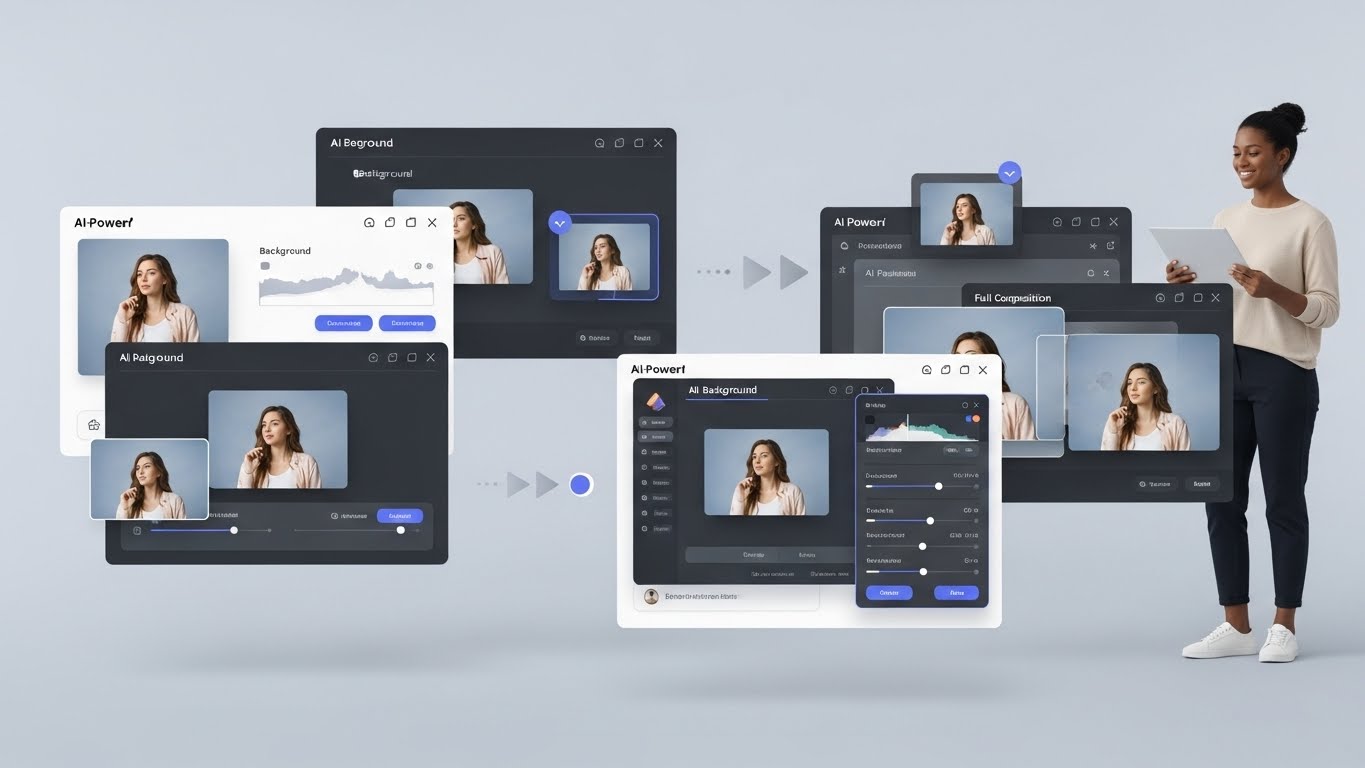
There was a time when I’d spend entire weekends hunched over my computer, painstakingly removing backgrounds pixel by pixel, adjusting skin tones manually, and wrestling with complex layer masks. As someone who’s been working in commercial photography and digital design for over twelve years, I remember those marathon editing sessions all too well.
Then everything changed.
The emergence of intelligent image editing solutions has fundamentally transformed how professionals and hobbyists create visual content. What once took hours now takes minutes. What required years of technical training now feels almost intuitive. But here’s the thing—not all these tools are created equal, and knowing which one fits your specific workflow can save you tremendous time and frustration.In this guide, I’m going to walk you through the landscape of modern image editing solutions that leverage machine learning and intelligent algorithms. We’ll explore what actually works, what falls short, and how to integrate these tools into your creative process without sacrificing quality.
Why Speed Matters in Today’s Visual Economy
Let me paint you a picture. Last month, I was working with an e-commerce client who needed 2,400 product images processed for their spring catalog. Traditional editing would have taken my team approximately three weeks. We completed it in four days.
The demand for visual content has exploded exponentially. Social media managers are pumping out dozens of posts weekly. E-commerce platforms require thousands of product shots. Marketing teams need rapid iteration on campaign visuals. Content creators are expected to maintain consistent aesthetic standards across hundreds of images.
Speed isn’t just convenient anymore—it’s survival.
But here’s what I’ve learned after testing nearly every tool on the market: speed without quality is worthless. A fast tool that produces mediocre results creates more work on the backend—the real winners in this space balance velocity with precision.
AI Tools to Edit Images Quickly: The Current Landscape
The market has become genuinely crowded over the past few years. Some tools specialize in specific tasks, such as background removal, while others aim to be comprehensive editing suites. Understanding where each excels helps you build an efficient workflow rather than jumping between applications unnecessarily.
Background Removal and Object Isolation
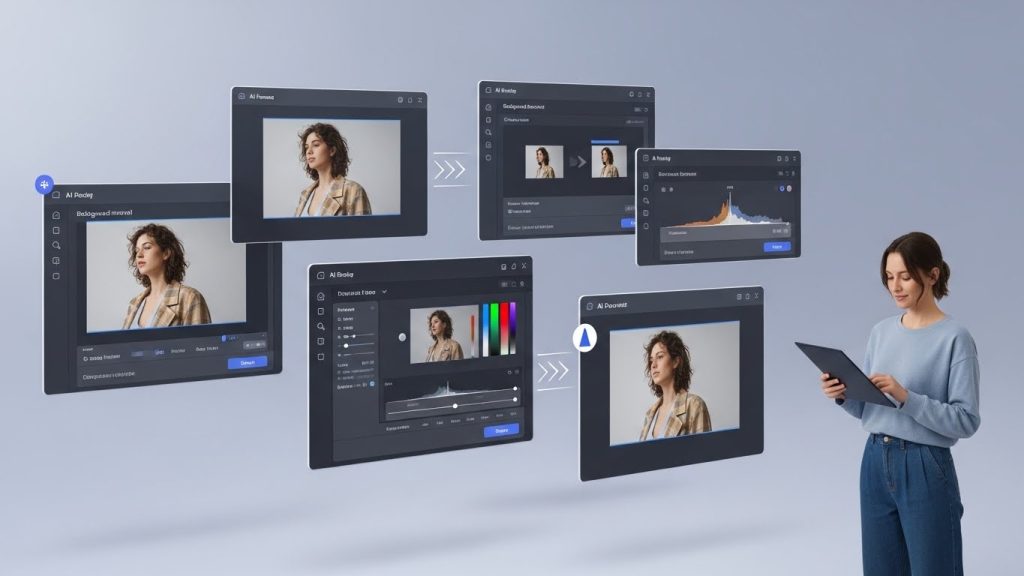
This category has seen the most dramatic improvement. Tools like Remove.bg, Photoroom, and Canva’s background remover have reached levels of accuracy that genuinely impressed me—and I’m pretty difficult to impress after years of doing this manually.
Remove.bg remains my go-to for pure background removal tasks. Edge detection for hair and fur has improved substantially since I first started using it in 2020. It handles complex subjects surprisingly well, though I still notice occasional struggles with wispy hair against similarly-colored backgrounds.
Photoroom takes a different approach by positioning itself as a complete product photography solution. If you’re shooting items for e-commerce, this tool streamlines the entire process from removal to shadow addition to template-based formatting. I’ve recommended it to several small business owners who lack design expertise but need professional-looking product shots.
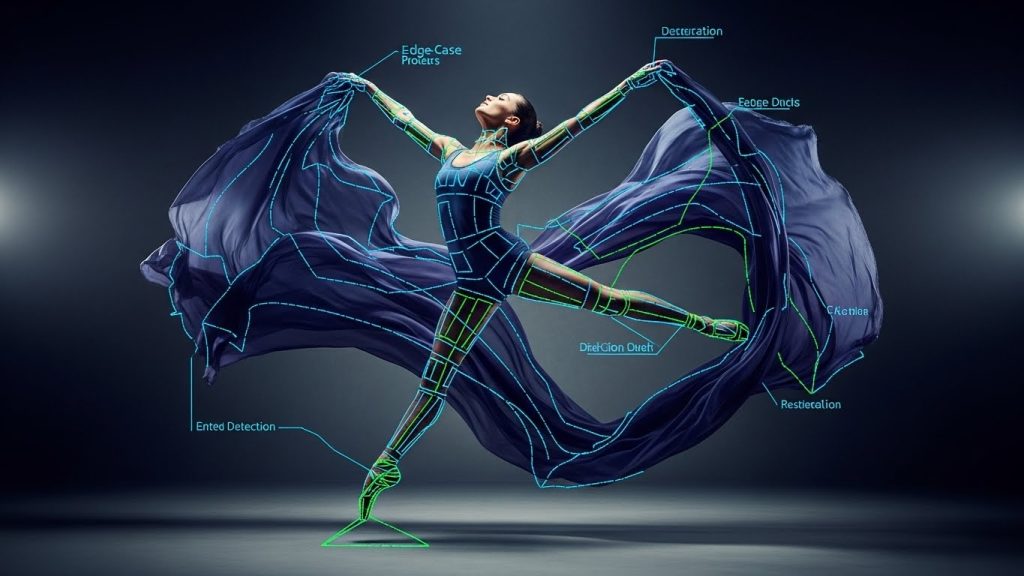
The practical limitation I’ve encountered? These tools still struggle with semi-transparent objects like glasses and water bottles with liquid, as well as certain fabric types. You’ll want to keep traditional methods handy for these edge cases.
Portrait Enhancement and Retouching
Portrait editing tools have evolved from aggressive, plastic-looking results to genuinely sophisticated skin work. The gap between professional retouching and automated results has narrowed considerably.
Luminar Neo incorporates intelligent portrait tools that understand facial structure. The skin enhancer actually preserves texture while smoothing imperfections—something that took me years to master manually. Their body-aware adjustments handle things like face-aware lighting and eye enhancement without creating that obvious “edited” look that plagued earlier software.
PortraitPro from Anthropics has been around longer than most, and its refinement shows. The granular control options let you dial in exactly how much intervention you want, which matters enormously for professional headshot work where subtlety is everything.
I ran a comparison test last quarter, processing 50 corporate headshots through various tools. PortraitPro produced results that required the least manual Cleanup afterward, though Luminar Neo came remarkably close and offers broader editing capabilities beyond portraits.
Comprehensive Editing Platforms
Some tools aim to handle everything under one roof. This approach has obvious workflow advantages, though jack-of-all-trades solutions sometimes sacrifice depth for breadth.
Adobe Photoshop has integrated intelligent features throughout its latest versions. The neural filters, generative fill, and content-aware tools have transformed Photoshop from purely manual software into a hybrid experience. If you’re already invested in the Adobe ecosystem, these additions provide substantial speed improvements without requiring new subscriptions.
Canva deserves mention for democratizing image editing entirely. Their magic tools handle background removal, object erasing, and one-click enhancements with impressive consistency. For social media managers and marketing professionals who need “good enough” results quickly, Canva often delivers.
Pixlr offers a middle ground—more capability than basic tools, less complexity than complete professional suites. Their automated enhancement features work well for batch processing, and the browser-based interface eliminates installation headaches.
Detailed Tool Comparison: What Actually Performs?
After months of systematic testing across various use cases, I’ve compiled performance data that might help guide your decisions:
ToolBest Use CaseSpeed RatingQuality RatingLearning CurvePrice Point
Remove.bg Background removal Excellent Very Good Minimal Free tier available, $9.99/mo for volume
Photoroom Product photography Excellent Very Good Low Free tier, $12.99/mo Pro
Luminar Neo Portrait & landscape editing Good Excellent Moderate $119 one-time or subscription
Adobe Photoshop Professional comprehensive editing Good Excellent High $22.99/mo
Canva Social media content Excellent Good Minimal Free tier, $12.99/mo Pro
Topaz Photo AI Image upscaling & noise reduction Good Excellent Low-Moderate $199 one-time
Pixlr Quick web-based editing Very Good Good Low Free tier, $4.90/mo Plus
PortraitPro Headshot retouching Good Very Good Moderate $44.95 one-time
Fotor Batch enhancement Very Good Good Low Free tier, $8.99/mo Pro
Cleanup. Pictures Object removal Excellent Good Minimal Free tier, $5/mo Pro
AI Tools to Edit Images Quickly: Workflow Integration Strategies
Knowing these tools exist is one thing. Actually incorporating them effectively into your workflow requires strategic thinking about how they complement each other.
The Photography Professional’s Stack
For my commercial work, I’ve settled on a combination that maximizes both quality and efficiency:
- Initial culling and raw processing happen in Lightroom Classic
- Background removal and replacement go through Remove.bg or Photoroom, depending on the subject
- Portrait retouching gets processed through Luminar Neo’s skin tools
- Final polish and specific corrections happen in Photoshop
This layered approach lets each tool handle what it does best. The total processing time for a typical portrait session dropped from roughly six hours to about ninety minutes.
The Social Media Manager’s Approach
Content creators working at volume need different priorities. Speed and consistency often matter more than pixel-perfect results.
A social media manager I consult with processes about 200 images weekly. Her workflow looks like:
- Batch enhancement through Fotor or Lightroom’s automated presets
- Template application via Canva with brand-specific layouts
- Quick fixes using Cleanup.pictures for stray objects or distractions
She rarely opens Photoshop anymore. The quality difference doesn’t justify the time investment for content that lives on Instagram for 48 hours before getting buried by algorithms.
The E-commerce Operator’s System
Product photography workflows benefit enormously from specialized tools:
- Capture using consistent lighting setups
- Automatic background removal through Photoroom
- Shadow and reflection addition using Photoroom’s templates
- Final sizing and export for various marketplace requirements
One client selling handmade jewelry reduced their per-image processing time from twelve minutes to under two minutes using this approach.
Real-World Case Study: Magazine Editorial Workflow
Let me share something specific. Earlier this year, I worked with a regional lifestyle magazine on their summer issue. We shot 340 images across fourteen locations over six days. The editorial deadline was tight—we had eleven days from final shoot to print-ready files.
Traditional workflow would have been brutal. Instead, we implemented a hybrid approach:
Initial Sort (Day 1-2): Basic culling in Photo Mechanic, rough selects into Lightroom.
Batch Processing (Day 3-4): Applied intelligent presets in Lightroom that automatically adjusted exposure, color temperature, and basic corrections based on metadata. This handled about 70% of the heavy lifting.
Portrait Enhancement (Day 5-6): All people shots went through Luminar Neo’s portrait tools for skin smoothing and eye enhancement. The key was using subtle settings—maybe 30-40% on most sliders—to maintain a natural appearance.
Specific Corrections (Day 7-9): Complex images requiring compositing, advanced retouching, or creative manipulation went to Photoshop. This was maybe 15% of the final selects.
Final Review and Export (Day 10-11): Quality control pass, export to print specifications.
We delivered on time with quality that met our expectations. The photo editor later mentioned it was their smoothest issue production in memory.
Limitations Worth Acknowledging
I’d be doing you a disservice if I only highlighted strengths. These tools have genuine limitations that affect professional usage.
Edge Case Accuracy
No matter how impressive the demonstrations look, real-world images throw curveballs. Complex scenes with multiple overlapping subjects, unusual lighting conditions, or non-standard compositions frequently produce unexpected results.
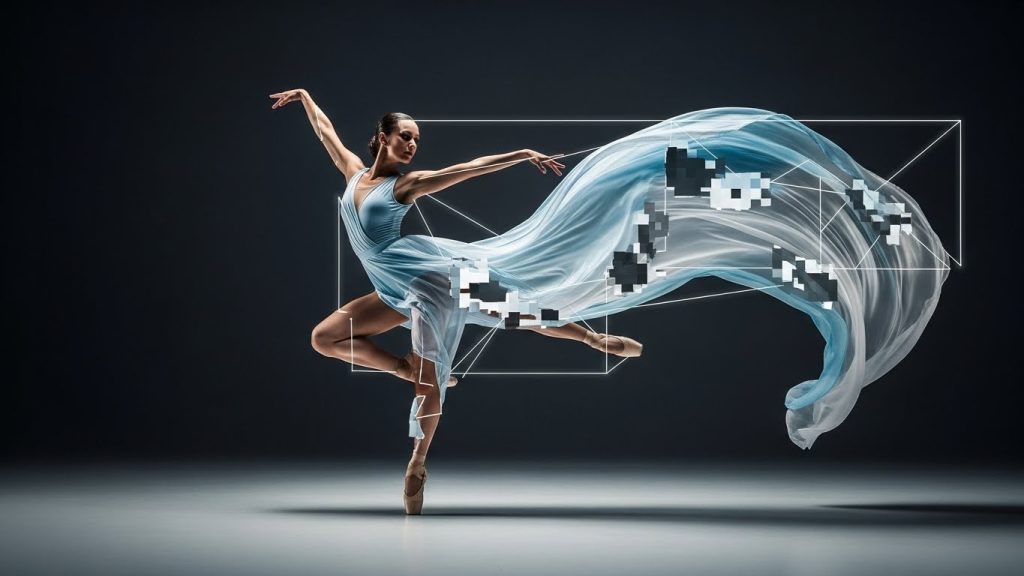
I recently tried processing an image of a dancer mid-leap with fabric flowing behind her. Three different background removal tools failed to properly separate the sheer fabric from the background. Manual intervention was necessary.
Consistency Challenges
Batch processing can produce inconsistent results across similar images. I’ve processed product shots where the same white background rendered slightly different tones across pictures in the same batch. Color-critical work still requires human oversight.
Style Limitations
These tools work within trained parameters. If you’re pursuing unusual aesthetic choices or specific stylistic directions, automated tools often run counter to your intentions. They’re optimized for conventional expectations.
File Quality Concerns
Some browser-based tools compress output files. Always verify export settings and check that resolution and color space match your requirements before committing to a workflow.
AI Tools to Edit Images Quickly: Ethical Considerations
We need to talk about responsibility. These capabilities raise legitimate ethical questions that professionals should consider.
Authenticity in Journalism
News organizations have established clear boundaries about acceptable manipulation. Tools that make alteration trivially easy increase the temptation to cross those lines. If you work in journalism or documentary contexts, maintaining ethical standards requires intentional discipline.
Body Image Implications
Portrait enhancement tools make it easy to alter body proportions, skin characteristics, and facial features. The cumulative effect of normalized enhancement contributes to unrealistic beauty standards. I’ve decided to limit how aggressively I use these features, particularly when working with younger subjects.
Disclosure Practices
Should enhanced images be labeled? The legal landscape varies by context. In some jurisdictions, advertising now requires disclosure of significant alterations. Even where not legally required, transparency builds trust with audiences.
Attribution and Creative Rights
Some tools train on large datasets of existing images. The intellectual property implications remain contested—understanding where training data originates and whether creators were compensated or credited is essential to ethical practice.
Making Smart Purchase Decisions
Budget realities matter. Here’s how I’d approach tool selection based on different situations:
Hobbyist or Occasional User: Start with free tiers. Canva, Remove.bg, and Pixlr all offer capable free options that meet basic needs without requiring an investment.
Freelancer or Small Business: Consider annual plans carefully. Luminar Neo’s one-time purchase offers excellent value if portrait and landscape work dominate your needs. Photoroom’s subscription makes sense if you’re processing high volumes of product images.
Agency or High-Volume Producer: Adobe’s ecosystem probably become necessary despite the subscription cost. The integration advantages and advanced capabilities justify the expense when image editing represents a core business activity.
Specialized Needs: Tools like Topaz Photo AI justify their price if you regularly need upscaling or noise reduction. The results genuinely exceed what generalist tools produce for these specific tasks.
What’s Actually Coming Next?
Having attended several industry conferences and closely followed development roadmaps, I can offer informed speculation on where this category is heading.
Better video integration seems inevitable. Tools that currently handle still images are expanding into video processing. The computational demands are significantly higher, but the trajectory is clear.
More granular control represents another direction. Early tools offered binary results—accept or reject. Newer iterations provide sliders and adjustments that let users dial in exactly how much automation they want applied.
An improved understanding of creative intent is perhaps the most exciting. Future tools will likely better interpret stylistic goals rather than just technical corrections. Early experiments in this direction show promise.
On-device processing is expanding. Mobile applications increasingly perform sophisticated editing without requiring cloud processing, improving speed and privacy simultaneously.
Practical Tips From Experience
After years of working with these tools, some lessons emerged through trial and error:
Always keep original files. Automated processing isn’t reversible. Maintain unaltered originals until you’re delighted with the results.
Develop quality control habits. View results at 100% zoom before considering them finished. Artifacts and edge problems often hide at lower levels of detail.
Create reference comparisons. When testing new tools, process the same challenging images through each option. Consistent test subjects clearly reveal capability differences.
Don’t over-process. The temptation to apply every available enhancement creates unnatural results. Restraint produces better outcomes than maximizing every slider.
Stay updated. These tools improve rapidly. Features that disappointed you six months ago may work much better now.
Conclusion: Embracing the Hybrid Future
The landscape of rapid image editing has genuinely matured. Tools that seemed gimmicky a few years ago now produce professional-grade results across many common scenarios.
But here’s my honest take after all this experience: the best results come from a thoughtful combination of automated efficiency and human judgment. These tools accelerate workflow enormously, but they haven’t replaced the creative decision-making, quality oversight, and stylistic sensibility that experienced editors bring.
I use these tools daily now. They’ve transformed my capacity and freed me to focus on creative aspects rather than technical tedium. That’s genuinely exciting.
Yet I still manually edit specific images. I still override automated suggestions when they miss my intent. I still apply human taste to refine what algorithms propose.
The professionals who thrive going forward won’t be those who resist these tools or those who abdicate judgment to them entirely. Success belongs to creators who master the hybrid approach—leveraging automation for speed while maintaining human oversight for quality.
That’s where I’ve landed after extensive experience with this technology. Hopefully, this guide helps you find your own productive balance.
Mobile AI Editing: When Your Phone Becomes the Studio
Desktop applications dominate professional workflows, but mobile AI editing has matured considerably. For content creators, social media managers, and photographers who need quick edits on location, smartphone options now deliver genuinely usable results.
Snapseed remains my go-to for quick mobile adjustments. While Google hasn’t marketed it heavily as an “AI tool,” the healing and expansion features work remarkably well for a free application. I’ve salvaged shots on client location visits, sending quick previews from my phone while the complete raw files wait for proper desktop processing.
TouchRetouch specializes in object removal on mobile devices. The interface feels almost too simple—tap on what you want gone, and it disappears. For removing street signs, trash cans, or random people from otherwise clean shots, it handles the job surprisingly well. At a few dollars for the app, the value proposition makes sense for anyone who regularly posts on social platforms.
PhotoRoom deserves mention for product photography specifically. Small business owners selling on Instagram, Etsy, or their own websites can capture product photos, remove backgrounds, and create professional-looking listings entirely from their phones. I’ve recommended it to countless small-business clients who can’t justify full-production shoots for every new item in their inventory.
The quality gap between mobile and desktop editing has narrowed, though it hasn’t disappeared. For Instagram stories, TikTok content, or quick social posts, mobile AI editing delivers adequate results. For print work, commercial campaigns, or anything requiring precise control, desktop tools still reign.
Industry-Specific Applications
Different industries benefit from AI editing tools in distinct ways. Understanding these applications helps identify which investments make practical sense.
Real Estate Photography
Real estate photographers face unique challenges—tight shooting schedules, imperfect properties, and clients who expect magazine-quality results from occupied homes. AI tools address several pain points.
Sky replacement transforms overcast exterior shots into inviting images with dramatic clouds and blue skies. I’ve worked with real estate agencies that previously had to reschedule shoots due to weather. Now they shoot regardless and handle the sky in post-processing.
Virtual staging has evolved beyond simple furniture placement. Current tools analyze room dimensions, lighting direction, and existing elements to place realistic furniture that responds appropriately to room shadows and reflections. Empty properties become inviting living spaces without the cost of physical staging.
Object removal handles the inevitable clutter in occupied homes—personal photos, children’s toys, excess furniture, and even vehicles parked in driveways. Rather than asking homeowners to sanitize their spaces completely, photographers can clean images afterward.
E-Commerce and Product Photography
The volume demands of e-commerce make AI editing nearly essential for competitive pricing. Processing hundreds of product images through background removal, color correction, and standardization would require armies of retouchers without automation.
PhotoRoom and Removal.AI both offer batch-processing capabilities for high-volume workflows. Upload a folder of product images, apply consistent white background treatment, and download processed files ready for marketplace listings.
Color consistency matters more than many realize. AI color-matching tools ensure that the same product photographed on different days, under slightly different lighting conditions, appears consistent across a catalog. Customers comparing options expect visual consistency.
Shadow generation adds professionalism to isolated products, rather than products floating disconnectedly on white backgrounds. AI-generated contact shadows ground items naturally, eliminating the need for complex lighting setups during capture.
Portrait and Event Photography
Portrait photographers benefit particularly from AI-powered retouching that maintains a natural appearance while addressing common client concerns. The goal isn’t creating plastic, unrealistic skin—it’s a subtle enhancement that makes people look like themselves on their best day.
PortraitPro by Anthropics takes this specialized approach, offering intelligent face detection and feature-specific adjustments. Reducing under-eye shadows, softening minor blemishes, and enhancing catchlights in the eyes are achieved through sliders rather than manual brushwork.
Event photographers processing hundreds of images from weddings, corporate functions, or conferences benefit from the batch application of AI-enhanced presets. Consistent color treatment, exposure balancing, and basic enhancement across large image sets would otherwise consume entire days.
Social Media and Content Creation
Content creators juggling multiple platforms with different format requirements find AI tools invaluable for adaptation workflows. A single well-produced image needs square crops for Instagram feeds, vertical formats for Stories and Reels, horizontal versions for Twitter and Facebook, and different Aspect ratios for Pinterest.
AI expansion fills the gaps when converting between formats rather than awkwardly cropping or letter-boxing. The beach sunset, which worked perfectly as a vertical phone capture, can be extended horizontally for YouTube thumbnails while maintaining visual coherence.
Speed matters for trend-driven content. When a cultural moment creates meme opportunities or timely content possibilities, creators who can execute quickly capture audience attention. AI editing compresses the gap between concept and published content.
Batch Processing: Where Real Time Savings Happen
Individual image editing improvements impress, but batch processing capabilities transform business economics. Processing one image 50% faster helps. Processing five hundred images 50% faster changes what’s financially viable.
Topaz Photo AI handles batch processing elegantly. Drop a folder of images from a low-light event shoot, apply noise reduction and sharpening across the entire set, and walk away while processing completes. The AI analyzes each image individually, applying appropriate levels of correction based on actual noise and blur levels rather than blanket settings.
Adobe Lightroom’s Denoise feature now leverages AI processing and supports batch application. For photographers already working within the Lightroom ecosystem, this integration eliminates the need for round-tripping to external applications.
Capture One has incorporated AI-powered features, including Smart Adjustments and automatic subject detection. For commercial and fashion photographers who prefer Capture One’s color science, these additions bring competitive AI capabilities without switching platforms.
The practical consideration: batch processing demands computing resources. Running AI processing on hundreds of images simultaneously can overwhelm modest hardware. Professionals who regularly handle high volumes should factor processing capacity into workstation investments.
Free vs. Paid: What You Actually Get
The proliferation of AI editing tools has created tiered ecosystems in which free versions offer taste-test access, while paid subscriptions unlock full capabilities. Understanding these tiers prevents frustration.
Free tier limitations typically include:
- Lower resolution outputs (often 720p or 1080p maximum)
- Watermarked results
- Processing queues during peak usage
- Limited monthly credits or operations
- Reduced feature sets
Paid subscriptions typically add:
- Full resolution exports
- Priority processing
- Unlimited or higher usage caps
- Advanced features and controls
- Batch processing capabilities
- Commercial usage rights
For casual personal use, free tiers often suffice. For professional work, paid subscriptions are usually necessary—and the time savings typically justify the costs quickly.
A middle path exists for occasional professional needs: many services offer pay-per-image pricing that makes sense for infrequent usage. Processing a handful of images monthly through credit purchases costs less than unused monthly subscriptions.
Learning Resources and Skill Development
While AI tools lower technical barriers, developing judgment about when and how to use them still requires learning. Several resources help accelerate this understanding.
YouTube tutorials from working photographers demonstrate real-world applications better than manufacturer marketing videos. Search for specific tools applied to your particular photography niche—you’ll find practitioners sharing actual workflows.
Platform-specific communities on Reddit, Facebook groups, and Discord servers provide troubleshooting help and technique sharing. When AI tools produce unexpected results, community members often identify solutions quickly.
Official documentation and webinars from tool developers explain features comprehensively, though often with idealized examples. Understanding claimed capabilities helps identify when tools fall short of expectations.
Experimentation remains the best teacher. Most tools offer trial periods or free tiers, allowing exploration without commitment. Processing personal images with various tools reveals practical strengths and weaknesses more quickly than reading reviews.