
Beyond the Prompt: An Honest Guide to AI Drawing Tools for Digital Artists
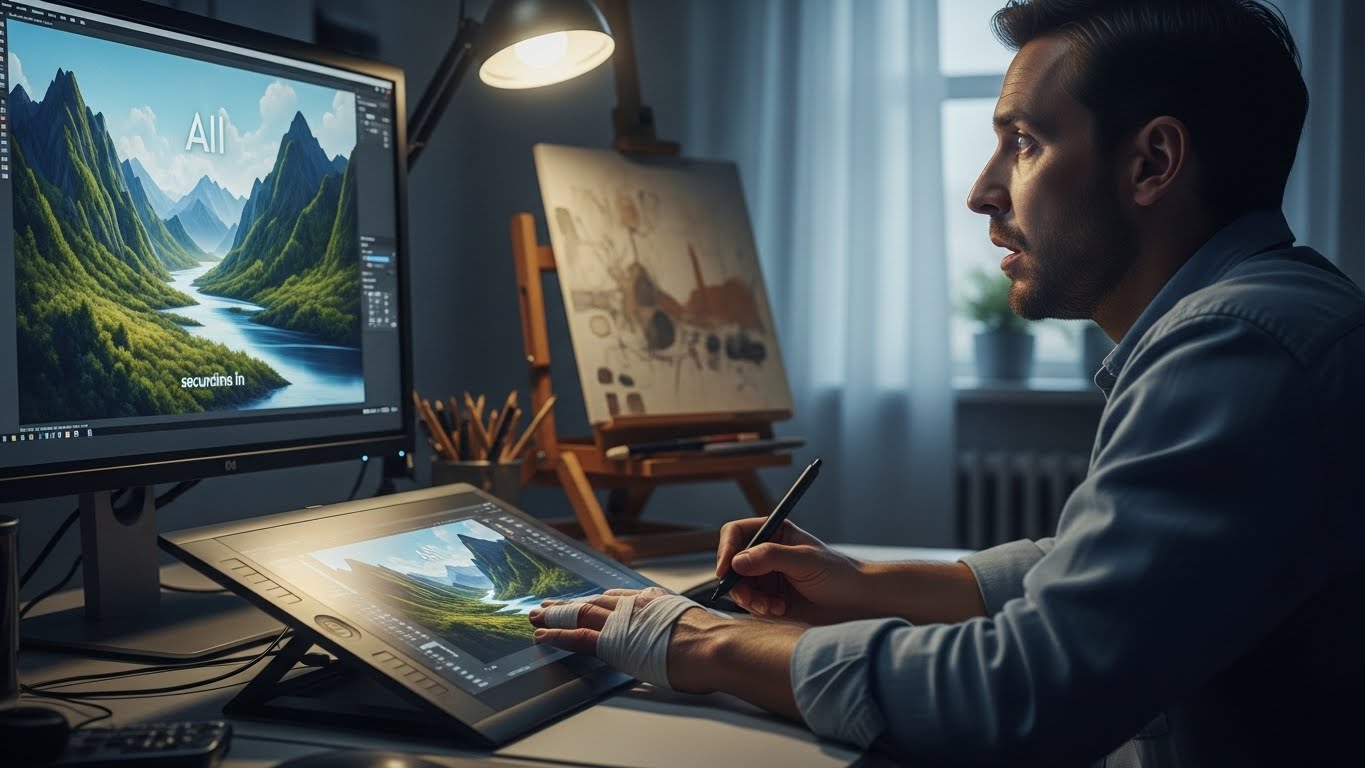
The first time I saw an AI generate a fully rendered landscape in eight seconds, I didn’t feel excitement. I felt a distinct, cold drop in my stomach. I looked down at my Wacom tablet, then at the blisters on my fingers from a week-long deadline crunch, and wondered if the thousands of hours I’d spent studying anatomy, light physics, and color theory had just been rendered obsolete by a dataset and a probability curve.
If you are reading this, you likely know that feeling. You’ve seen the discourse on Twitter/X, you’ve seen the protests on ArtStation, and you’ve felt the anxiety. But over the last eighteen months, I decided to stop treating this technology as a monster under the bed and start treating it like a complex, somewhat unruly new brush in my kit. I’ve integrated AI drawing tools into my professional concept art and illustration workflow, not to replace my hand, but to amplify it.
This article isn’t about how to type a prompt and pretend you painted a masterpiece. It is a deep, realistic, and occasionally critical dive into how actual working artists are using these tools to speed up workflows, solve technical problems, and break through creative blocks. We are going to move past the hype and look at the nuts and bolts of the new digital studio.
Part 1: The Mental Shift – From “Generator” to “Assistant”
The biggest misconception about AI in the art world is that it is an “all-or-nothing” proposition. The general public thinks you either paint every pixel by hand or you press a button and get a finished image. The reality for professionals is a vast gray area in between.
In the early days of V3 Midjourney, it was a slot machine. You put in a “token” (prompt), pulled the lever, and hoped for a jackpot. That is useless for a professional artist who has a specific client brief. If the Art Director asks for a “futuristic tank with specific tread patterns in a rainy Tokyo alley,” and the AI gives you a tank with legs in a sunny desert, the tool is worthless.
The shift happened when the tools gave us control.
The modern workflow for AI drawing tools for digital artists is about “Image-to-Image” (Img2Img), Inpainting, and ControlNet. It is about feeding the AI your crude sketch, asking it to render the lighting, taking it back into Photoshop to fix mistakes, and feeding it back in for texture details. It’s a game of tennis between human intent and machine calculation.
When you stop viewing AI as the artist and start seeing it as the world’s fastest intern, the dynamic changes. The intern is talented but drunk; they can render chrome perfectly, but might put seven fingers on a hand. Your job is Art Direction. You provide the vision, the composition, and the correction.
Part 2: The Heavy Hitters – A Technical Breakdown
There are dozens of apps popping up daily, but for a serious digital artist, the field narrows down to a few key players. Let’s break down the specific tools that actually fit into a pipeline.
1. Stable Diffusion (The Power User’s Workbench)
If Midjourney is an Apple product—slick, easy, but a walled garden—Stable Diffusion is a custom-built PC running Linux. It is open-source, runs locally on your own graphics card (providing you have a decent NVIDIA GPU), and offers a level of control that is terrifyingly deep.
For artists, the “killer app” within Stable Diffusion is ControlNet.
Before ControlNet, AI was a guessing game. With ControlNet, you can upload a line drawing—sketchy, messy, disproportionate—and tell the AI, “Use these exact lines as the structure, but render it as a realistic photograph.”
Real-world application:
I recently had to design a complex cathedral interior. Perspective drawing for intricate Gothic arches is tedious. I did a very rough block-out in Blender (simple grey shapes), took a screenshot, and fed it into Stable Diffusion with ControlNet using the “Depth” model.
I didn’t prompt for “a cathedral.” I prompted for “gothic architecture, volumetric lighting, candle smoke, 8k resolution.” Because ControlNet locked the geometry to my 3D block-out, the AI simply “skinned” my scene. It painted the textures and lighting over my perfect perspective. I then took that output into Photoshop, painted over the artifacts, and had a pitch-ready piece in two hours instead of two days.
2. Adobe Photoshop & Firefly (The Integrated Utility)
Adobe’s approach with Firefly is less about “creating art” and more about “fixing problems.” Integrated directly into Photoshop via Generative Fill, this is likely the tool most illustrators will use daily without even thinking about it as “AI.”
The strength here is Inpainting and Outpainting.
Let’s say you’ve painted a beautiful character portrait, but the canvas feels too tight. Traditionally, expanding the background means cloning textures, painting new trees, and worrying about matching the noise grain.
With Generative Fill, you expand the crop tool, select the empty space, and type “forest background.” It seamlessly blends new pixels with your existing paint. It is rarely perfect—it often looks a bit soft or low-res—but it provides a 90% finished base that you can paint over.
Ethical Note: Adobe claims Firefly is trained on their Adobe Stock library, making it “commercially safe” and ethically cleaner than models scraped from the open internet. For client work where copyright liability is a concern, this is a massive selling point.
3. Krita with AI Plugins (The Open Source Hero)
I have to give massive credit to the Krita community. Krita is a free, open-source painting program that rivals Clip Studio Paint. Because it is open source, developers have created plugins that run Stable Diffusion within Krita.
This is the closest experience to “AI-assisted painting.” You can make a lasso selection on a character’s shoulder, type “rusty metal pauldron,” and the AI generates it directly on a new layer within your file. You can adjust the opacity, erase parts you don’t like, and keep painting. It feels native. It feels like a tool, not a replacement.
4. Vizcom (The Industrial Designer’s Dream)
If you work in hard-surface design, automotive, or product design, Vizcom is indispensable. Unlike the painterly hallucinations of other models, Vizcom is built to understand 3D form.
You draw a line sketch of a sneaker. You can then rotate a 3D bounding box to indicate the object’s orientation to the AI. When it renders, it understands that the line you drew is a bevel, not a flat mark. It rewards good draftsmanship. If your perspective is off, the render will look off. This tool encourages you to keep drawing, acting as a rendering engine for your sketches rather than an idea generator.
Part 3: Practical Workflows for the Skeptical Artist
Knowing the tools is one thing; using them without losing your style is another. Here are three concrete workflows I use that leverage AI drawing tools for digital artists while keeping the human in the driver’s seat.
Workflow A: The “Idea Bash” (Pre-Production)
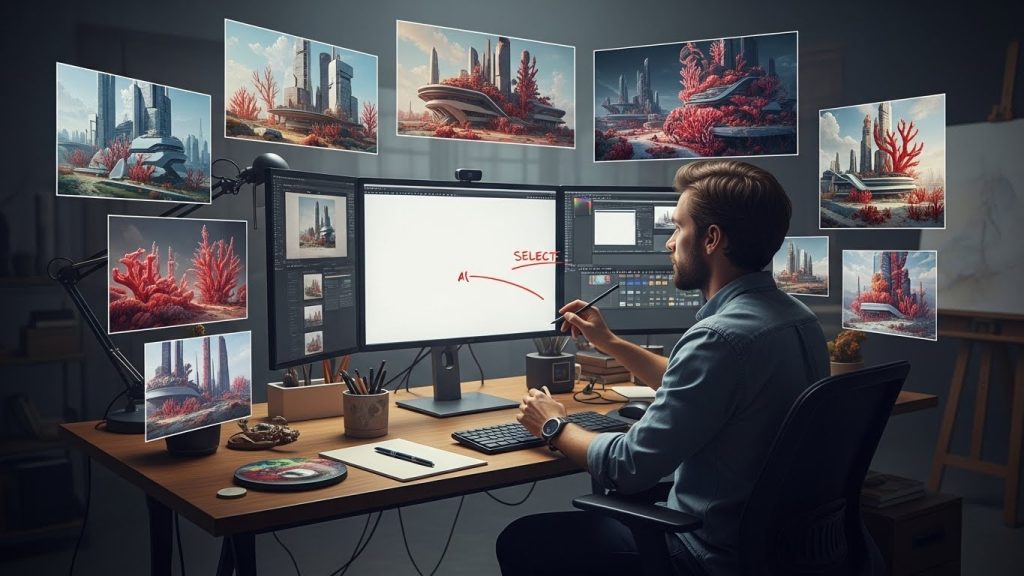
The Problem: The client wants a “Biopunk city made of coral,” and you have no idea what that actually looks like. You’re staring at a blank canvas.
The AI Solution:
- Midjourney/Nijijourney Phase: I will spend 30 minutes generating wild, abstract variations of the prompt. I’m not looking for a final image. I’m looking for “happy accidents”—a specific color palette, a shape language, a way the light hits a coral texture.
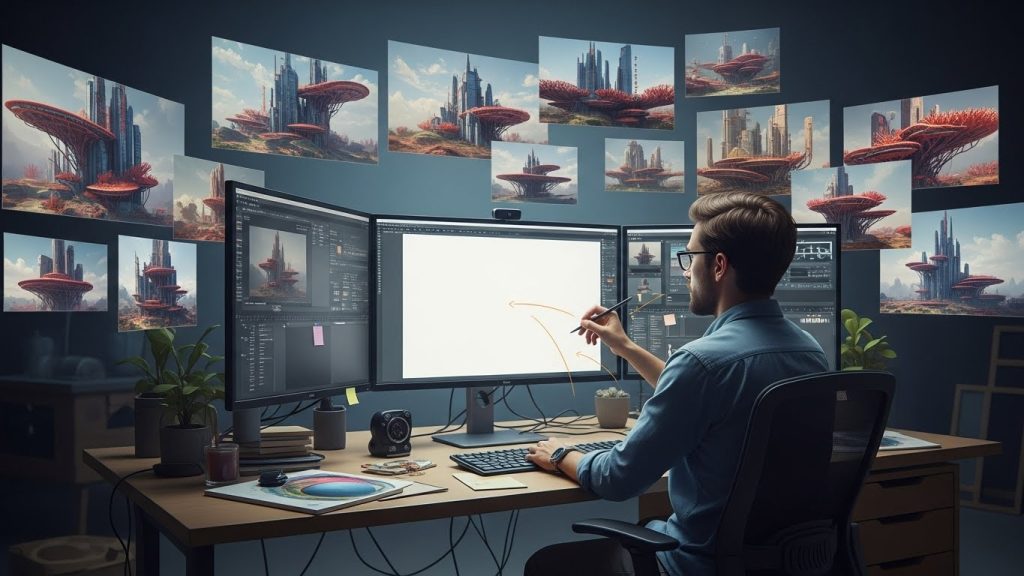
- The Bash: I take 10-15 of these generated images into Photoshop. I chop them up. I take a sky from one, a building shape from another, and a texture from a third.
- The Paint Over: I flatten the layer and start painting. The AI gave me the raw clay; I am now sculpting the statue. By the time the piece is done, none of the original AI pixels remain untouched. The AI served as a hyper-advanced mood board.
Workflow B: The Texture Generator (Production)
The Problem: You are painting a character with a complex embroidered jacket. Painting every stitch manually will take 10 hours and hurt your wrist.
The AI Solution:
- Flat Colors: I paint the jacket in flat colors with simple shading to establish the form.
- Img2Img (Inpainting): I select just the jacket area. In Stable Diffusion or Photoshop, I prompt for “intricate gold embroidery, floral pattern, silk texture.”
- Denoising Strength: This is the secret sauce. I set the “Denoising Strength” (or creativity slider) to low (around 0.3-0.4). This tells the AI: “Change the texture, but do not change the underlying shapes or colors.”
- Result: The AI overlays the embroidery texture onto my existing lighting and folds. I then manually paint the edges to ensure it wraps correctly around the form.
Workflow C: The “Ugly Sketch” Saviour (Ideation)
The Problem: You have a great composition in your head, but you are struggling to render it realistically to show the client.
The AI Solution:
- The Scribble: I draw a very loose, black-and-white sketch. Stick figures, blobs for trees, lines for the horizon. It looks terrible.
- ControlNet (Scribble Mode): I feed this into Stable Diffusion using ControlNet. I prompt for the mood and lighting.
- Iterate: I generate 20 variations. Suddenly, I can see my composition lit at sunset, at night, in fog, or in rain.
- Selection: I pick the one that matches the mood in my head and use it as an underpainting. I lower the opacity and paint my final image on top, using the AI generation as a guide for lighting and perspective.
Part 4: The Uncanny Valley and The Human Touch
We need to talk about the limitations, because they are severe. AI is notoriously bad at narrative logic and intent.
An AI model doesn’t know why a character is holding a sword. It just knows that characters often hold swords. It might merge the sword handle into the character’s hip because it confuses the visual patterns. It might make the character’s eyes look “dead” because it averages all the eyes it has seen, lacking the micro-expressions that communicate specific emotion.
This is where the “plastic” look comes from. AI art often has a sheen of perfection that feels hollow. The lighting is too perfect; the skin is too smooth.
How to spot—and fix—AI artifacts:
- Inconsistent Lighting: AI often lights objects from multiple sources that don’t make sense. As an artist, you must identify the primary light source and repaint the shadows to match.
- The “Tangle”: Look at complex areas like jewelry, tree roots, or fingers. AI loves to turn these into unintelligible tangles. You must paint over these completely to give them structural logic.
- Subtlety: AI deals in extremes. It struggles with the “subtle smirk” or the “look of longing.” You will almost always need to repaint faces to put the soul back in.
If you rely 100% on the output, you aren’t an artist; you’re a curator. The art happens in the correction.
Part 5: The Ethics and the Copyright Minefield
We cannot discuss AI drawing tools for digital artists without addressing the elephant in the room: Training Data.
Most major models (Midjourney, Stable Diffusion 1.5/XL) were trained on the LAION dataset, which scraped billions of images from the internet without the artists’ consent. This is a fact. It causes immense (and justified) anger in the community.
As a professional using these tools, you have to navigate your own ethical boundaries.
My Personal Code of Ethics:
- Transparency: If an image is heavily generated, I do not claim I painted it from scratch. I label it as “AI-Assisted” or “Mixed Media.”
- Reference, Not Replication: I never use prompts like “in the style of [Living Artist Name].” It is disrespectful to peers who are trying to make a living. I use prompts for styles (e.g., “Art Deco,” “Oil Painting,” “Unreal Engine 5 Render”) rather than specific people.
- Legal Safety: For commercial work owned by a corporation, I stick to Adobe Firefly or models with clearer legal provenance, or I use AI strictly for internal ideation phases that the public never sees.
There are also tools for protection. Glaze and Nightshade are tools developed by the University of Chicago that add invisible noise to your artwork before you upload it online. This noise “poisons” the training data, making it difficult for AI models to mimic your specific style. If you are a stylist with a unique look, I highly recommend looking into these tools to protect your portfolio.
Part 6: Hardware – What Do You Need?
If you want to run these tools locally (which I recommend for privacy and cost savings), your computer needs to be beefy.
The GPU is King.
CPU and RAM matter, but AI generation lives and dies on VRAM (Video RAM).
- Minimum: NVIDIA RTX 3060 (12GB VRAM). This is the budget king. 12GB is enough to run Stable Diffusion comfortably.
- Ideal: NVIDIA RTX 4090 (24GB VRAM). This is expensive, but it allows you to train your own models (LoRAs) and generate high-resolution images in seconds.
- Mac Users: Apple Silicon (M1/M2/M3) chips can run these tools using “Draw Things” or “Diffusion Bee,” but they are significantly slower than a dedicated NVIDIA GPU.
If you don’t have the hardware, you are stuck paying subscriptions for cloud services like Midjourney or Leonardo.ai.
Part 7: Training Your Own Model (The LoRA Revolution)
The most exciting development for professionals is the ability to train a LoRA (Low-Rank Adaptation).
Imagine you have a character you designed—let’s call him “Captain Reynolds.” You have 20 drawings of him from different angles. You can feed those 20 drawings into a training interface (like Kohya_ss).
The AI analyzes your specific drawings and creates a small file (about 100MB) that “knows” who Captain Reynolds is.
Now, you can open Stable Diffusion, load your “Captain Reynolds” LoRA, and prompt: “Captain Reynolds drinking coffee in a spaceship.” The AI will generate your character, in your design, in a new pose.
This is the holy grail for comic artists and storyboarders. It solves the “consistency” problem. You aren’t stealing someone else’s style; you are training a machine on your own work to help you produce more of it.
Part 8: The Future of the Industry
So, is the sky falling?
The entry-level market is certainly shrinking. The jobs that consisted of “draw a generic apple icon” or “make a quick background for a banner ad” are largely gone. AI can do generic work faster and cheaper.
However, the ceiling for high-end work is getting higher. Clients now expect faster turnaround times and higher fidelity. The role of the “Concept Artist” is morphing into “Concept Designer” or “Visual Developer.”
We are seeing a divergence in value.
On one side, we have “Content” – the cheap, fast, disposable imagery used for social media and blog posts. AI will dominate this.
On the other side, we have “Art” – intentional, human-centric, storytelling imagery. This is becoming a luxury good. Hand-painted textures, traditional media, and distinct, quirky human styles are becoming more valuable because they signify authenticity in a sea of algorithmic averageness.
The Hybrid Artist
The artists who will thrive are the hybrids. They are the ones who have strong fundamental drawing skills (perspective, anatomy, color) but also know how to use AI to skip the grunt work.
They use 3D to block out a scene, AI to texture it, and hand-painting to finish it. They are efficient, but they remain the visionaries.
Conclusion: Don’t Break Your Brushes
If there is one takeaway from this, let it be this: AI drawing tools for digital artists are not a replacement for learning how to draw.
If you don’t understand perspective, you won’t spot when the AI creates an Escher-like impossible room.
If you don’t understand anatomy, you won’t know how to fix the broken collarbone the AI generated.
If you don’t understand light, you won’t be able to integrate a character into a background.
The AI is a force multiplier. If your skill level is zero, zero times a thousand is still zero. But if you have skill—if you have taste, vision, and fundamentals—these tools can give you superpowers.
Don’t let the fear paralyze you. Download Krita. Try out Generative Fill. Break the tools, see where they fail, and find the spots where they fit your hand. The technology is here to stay, but the art is still yours to make. The future belongs to the artists who can command the machine, not the ones who are replaced by it.